
Every night the Star Tree lights up the forest. Then the Shadow came and scattered the stars. Now the forest is dark. Pip needs a game maker to build a path back. That is you! You only need to tap. No typing, no formulas.
Events are: when this happens, do that.
Solid means nobody walks through it.
Watch the videos
Like to watch first? Each part has a short video.
Part 1 shows steps 1 to 9. Pip walks, the forest grows, and you collect stars. Watch Part 1 on YouTube.
Part 2 shows steps 10 to 13. Add the mushroom, the Shadow and the Star Tree. Watch Part 2 on YouTube.
Part 1: Make the pieces
- Open Star PathTap the Projects tab. Tap Studio. Tap New game. Tap Star Path at the top of the list. All the pieces you need are in the strip at the top. The Start stone is already on the sand.
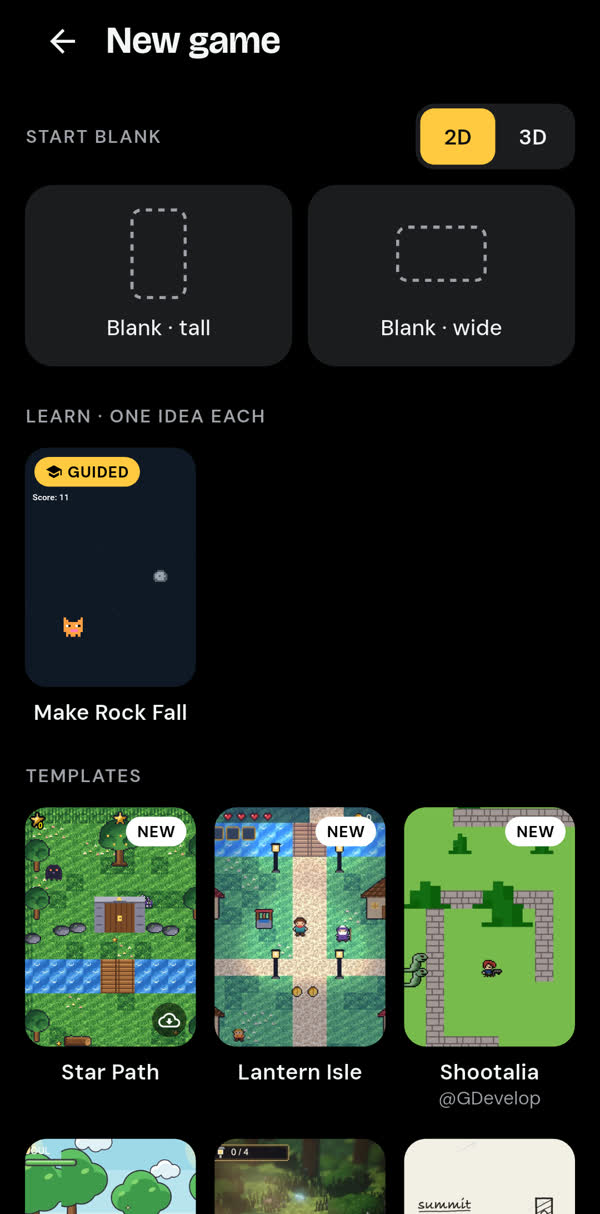
Tap Play and you will see the green forest and the Start stone on the sand. You add the hero next.
- Make Pip walkDrag Pip from the strip onto the sand. Tap Edit. Tap BEHAVIORS. Pick Top-down movement. A joystick appears by itself.
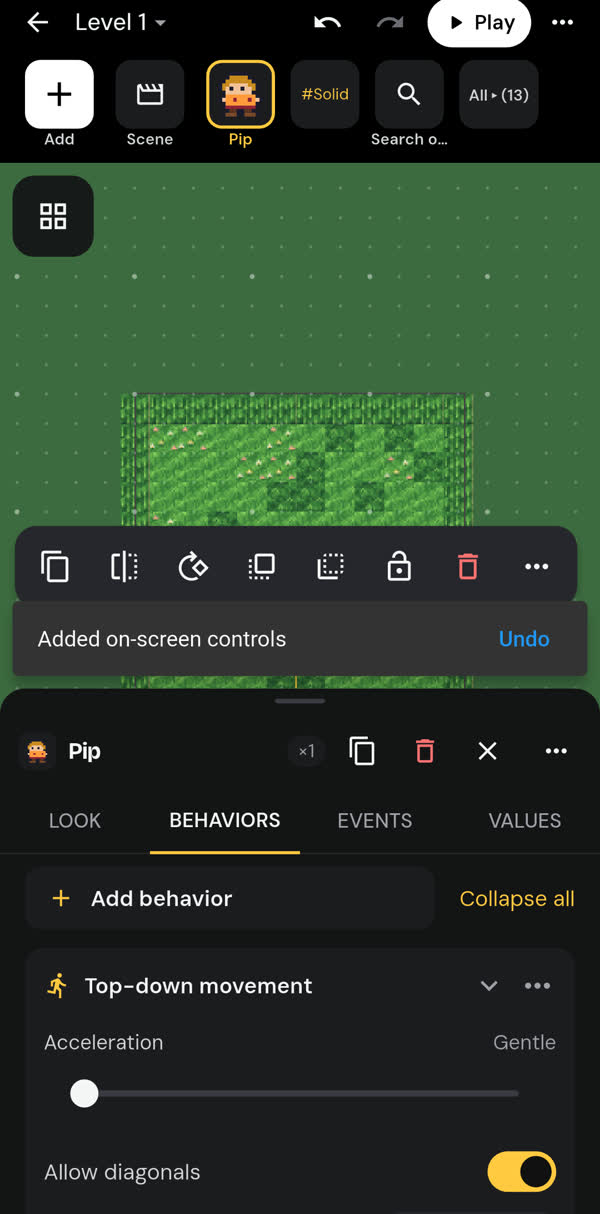
Tap Play and you will see Pip. Push the joystick and walk around the forest.
- Make Pip's legs moveTap Pip, then Edit, then EVENTS. Tap + Add event. Scroll to Pip's Top-down movement and pick Is moving. Tap + Add action, then Animation, then Animation (by name). Tap the name chip and pick Walk. Now tap the … on the event and pick Duplicate. On the copy, tap … and pick is not. Change Walk to Idle.
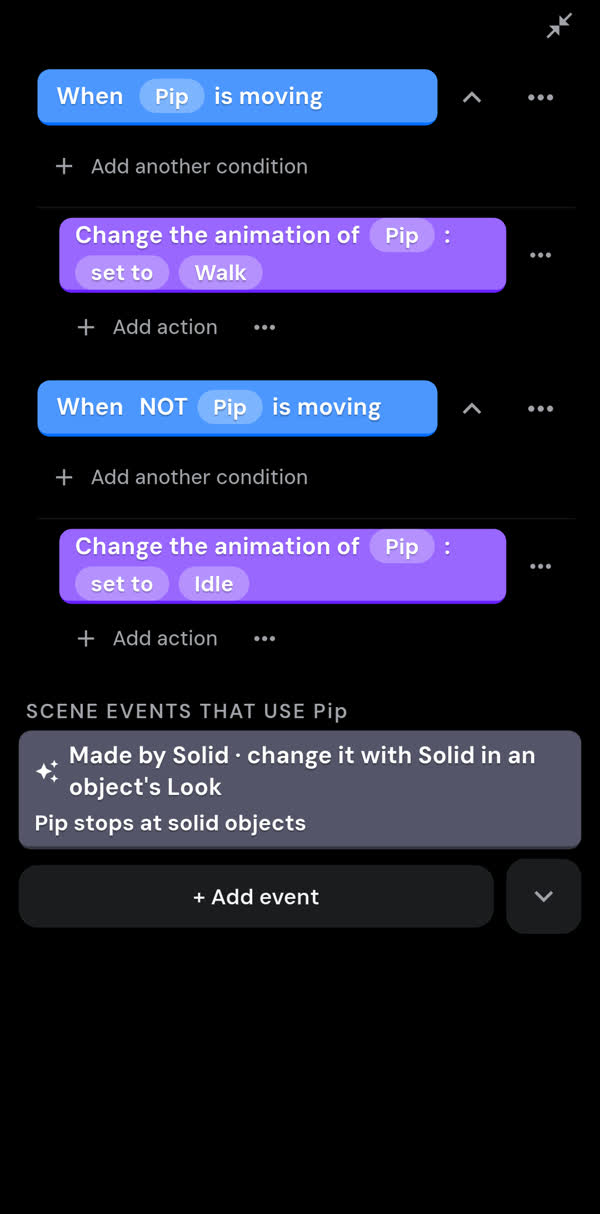
Tap Play and you will see Pip's legs move when he walks. He breathes when he stands still.
- Plant the treesOpen the objects list and tap All. Tap Tree. Hold the Tree button, then tap the forest to plant trees. Plant a few. Tap Done. Tap Edit, then LOOK, and switch Solid on.
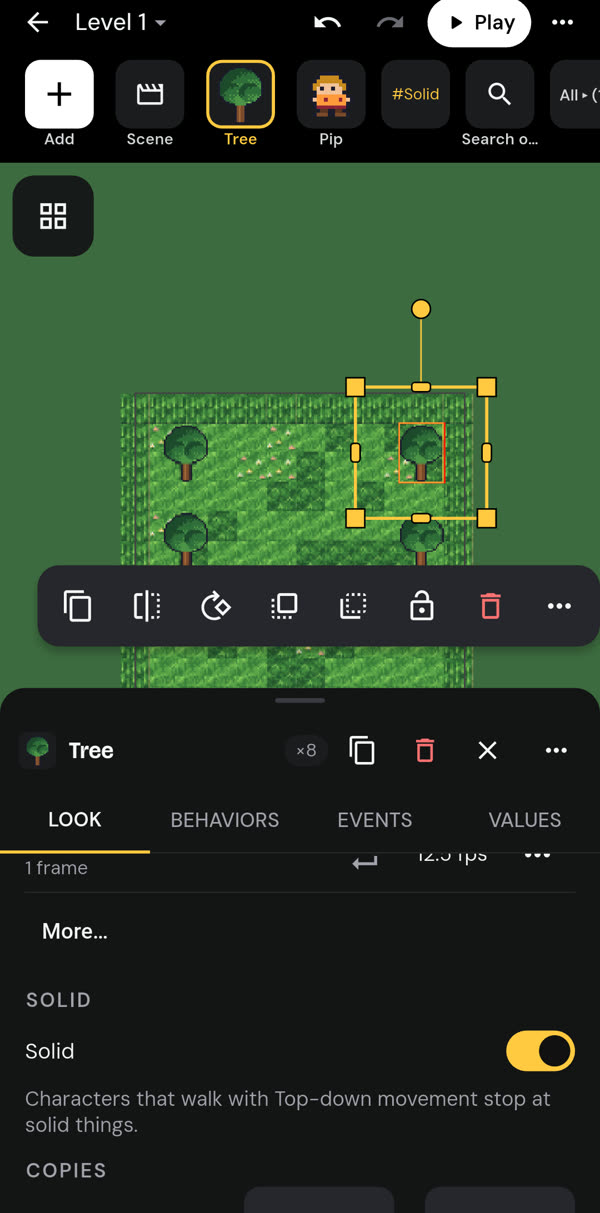
Tap Play and you will see Pip bump into the trees. He cannot walk through them.
- Add rocks and logsUse the same trick. Pick Rock. Hold its button, tap to place some, tap Done, then switch Solid on in Edit. Do the same for Log.
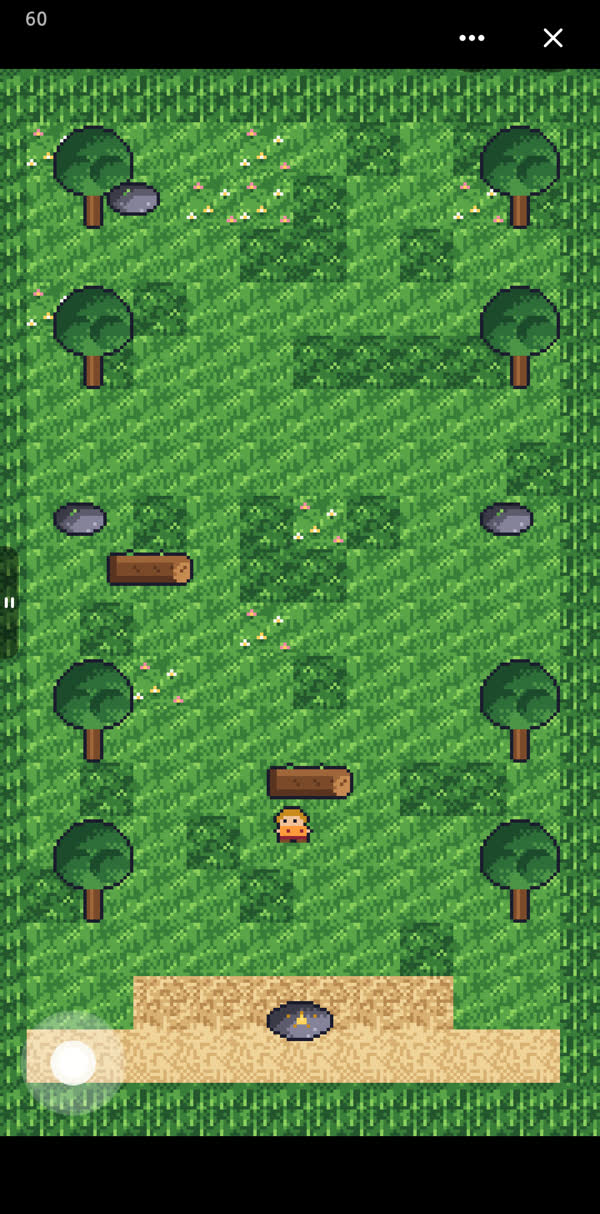
Tap Play and you will see a log stop Pip.
- Paint the river and the bridgePick Forest in the strip. Tap the grid button at the top left. This is Tile paint. Pick the water tile and the Rectangle tool. Drag across the forest to make a river. Pick the bridge tile and drag over the river, three tiles wide. Now tap the … on the water tile and pick Solid. Tap Done.
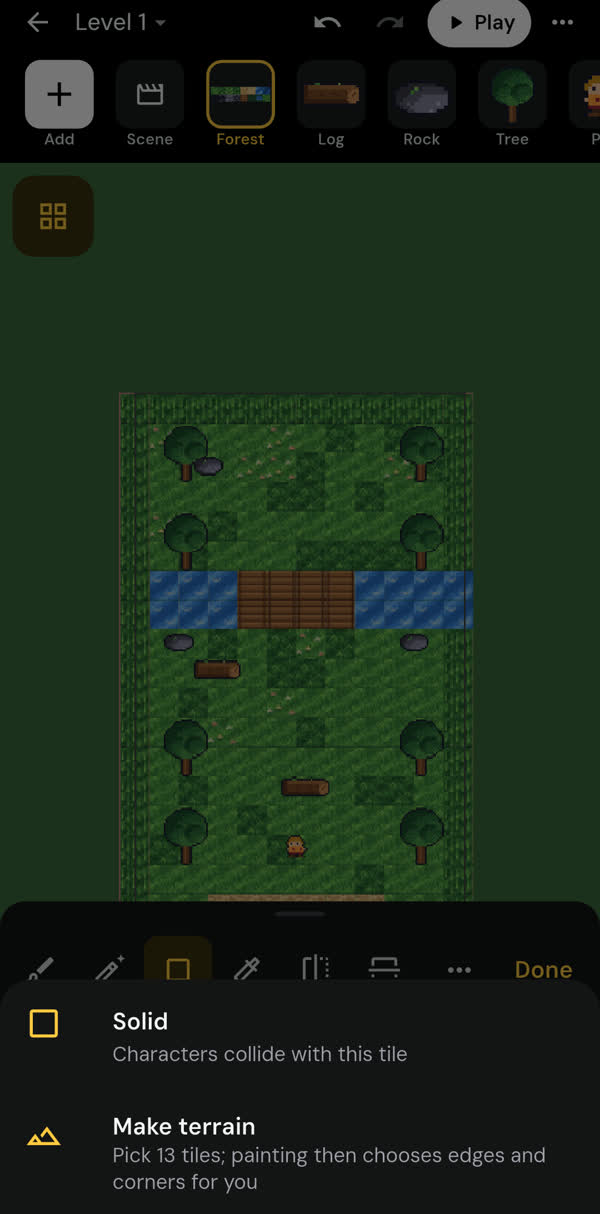
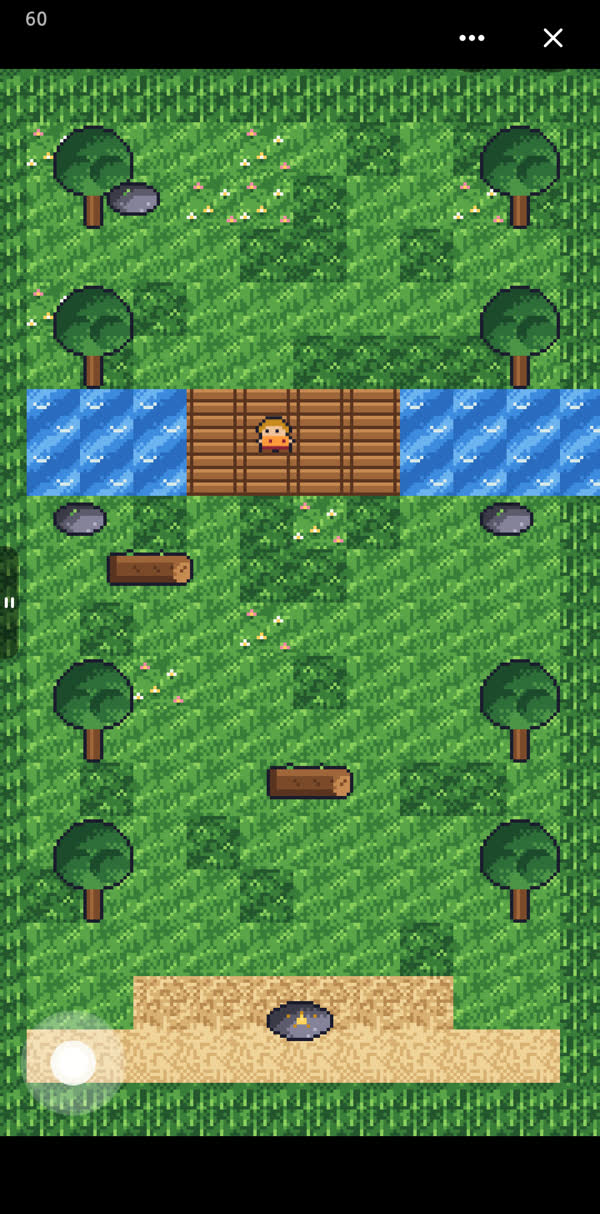
Tap Play and you will see the water stop Pip. The bridge lets him cross.
- Add the thornsPlace Thorns near the path. Tap Edit, then EVENTS, then + Add event. Pick When it touches…. Pip is picked for you. Tap + Add action, then Show all, then Move to…. Tap the object chip and pick Pip. Tap the set to chip and pick At an object…, then Start, then Done. The chip now reads Start (centre). Tap + Add action, then Play sound…, and pick Ouch.

Tap Play, walk into the thorns, and you will see Pip jump back to the Start stone with an Ouch.
- Scatter the starsTap + Add. Open READY-MADE. Pick Coin. It asks Which object collects coins? Pick Pip. Now make the coin look like a star. Tap Edit, then Edit art, then Add artwork, then Pictures in this game. Pick the star and tap the tick. Hold the Coin button and place 3 stars on the grass, below the river. Then tap + Add, READY-MADE, Score counter. It shows a star by itself.
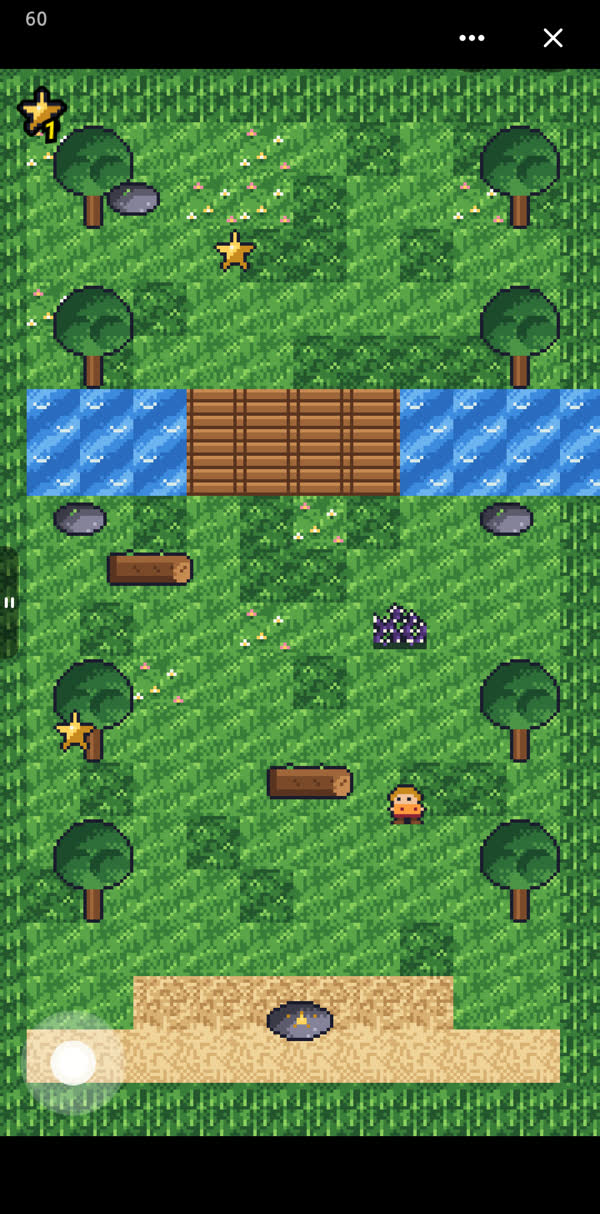
Tap Play and collect the stars. You will see the counter go 1, 2, 3.
- Build the star gatePlace StarGate at the top of the bridge. Tap Edit, then LOOK, and switch Solid on. Tap EVENTS, then + Add event, then When … is …. Pick the Score. Tap the word is and change it to at least. Tap the 0, tap 3 on the keypad, then Done. Tap + Add action, then Delete…, and pick StarGate. Tap + Add action, then Play sound, and pick Gate.
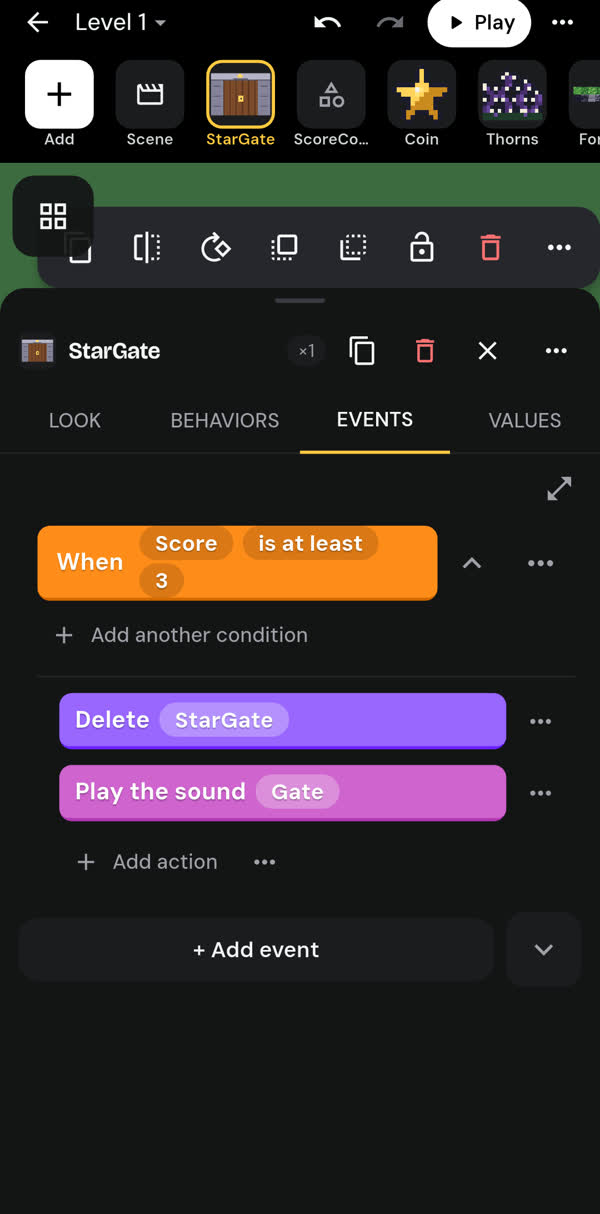
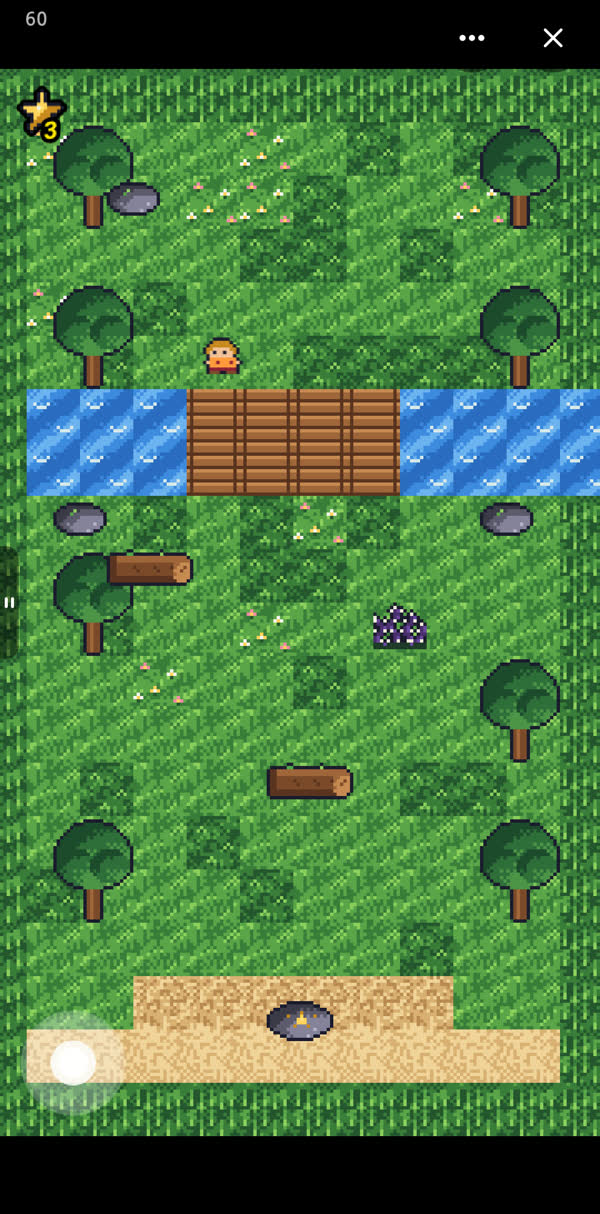
Tap Play and the gate blocks the bridge. Collect 3 stars and you will see the gate disappear.
Part 2: Build your forest
- Add a bouncy mushroomPlace Mushroom right below the thorns. Tap Edit, EVENTS, + Add event, When it touches…. Pip is picked. Tap + Add action and pick Move to…. Tap the object chip and pick Pip. Tap the set to chip, pick At an object…, then Mushroom. Now tap Down (+ down). On the keypad tap 1, 9, 2, then ±. Tap Done. The chip reads Mushroom (centre) − 192. Add Play sound… and pick Boing.
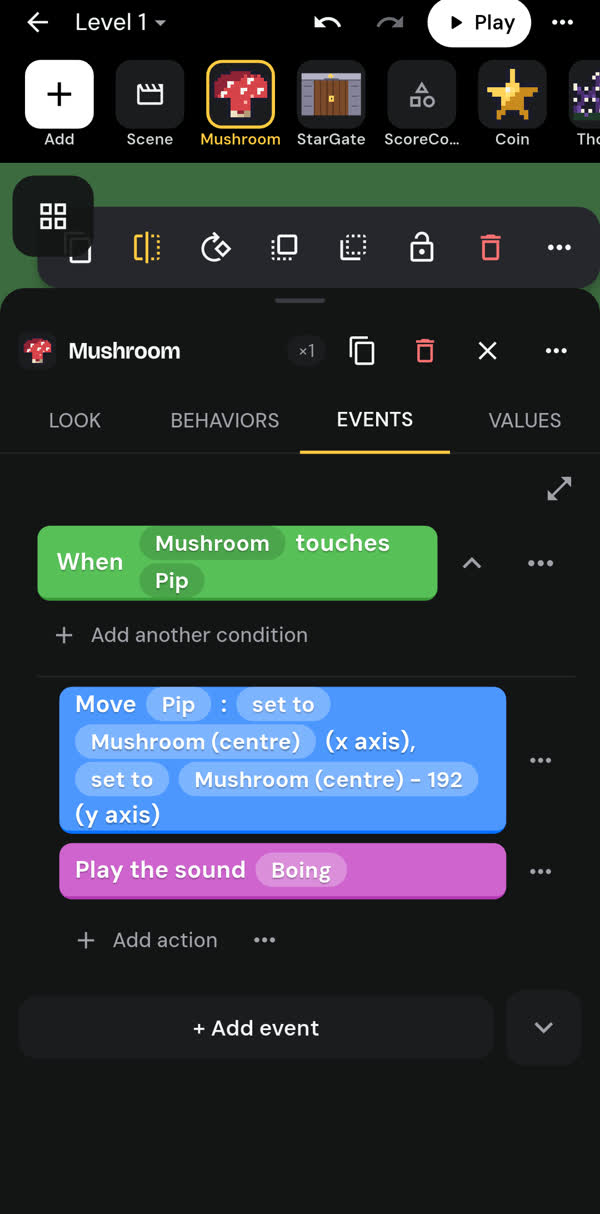
Tap Play, step on the mushroom, and you will see Pip hop over the thorns.
- Add the ShadowPlace Shadow in the forest. Tap EVENTS, then + Add event. Under SHADOW open Position and pick Distance between two objects. Change the second object to Pip. Tap the 0, tap 3, 0, 0 on the keypad, then Done. Tap the word When so it says While. Tap + Add action, then Movement, then Add a force to move toward an object. Pick Pip as the target. Set the speed to 120. Now tap + Add event and pick When it touches…. Add Move to… and send Pip to Start. Add Play sound… and pick Ouch.
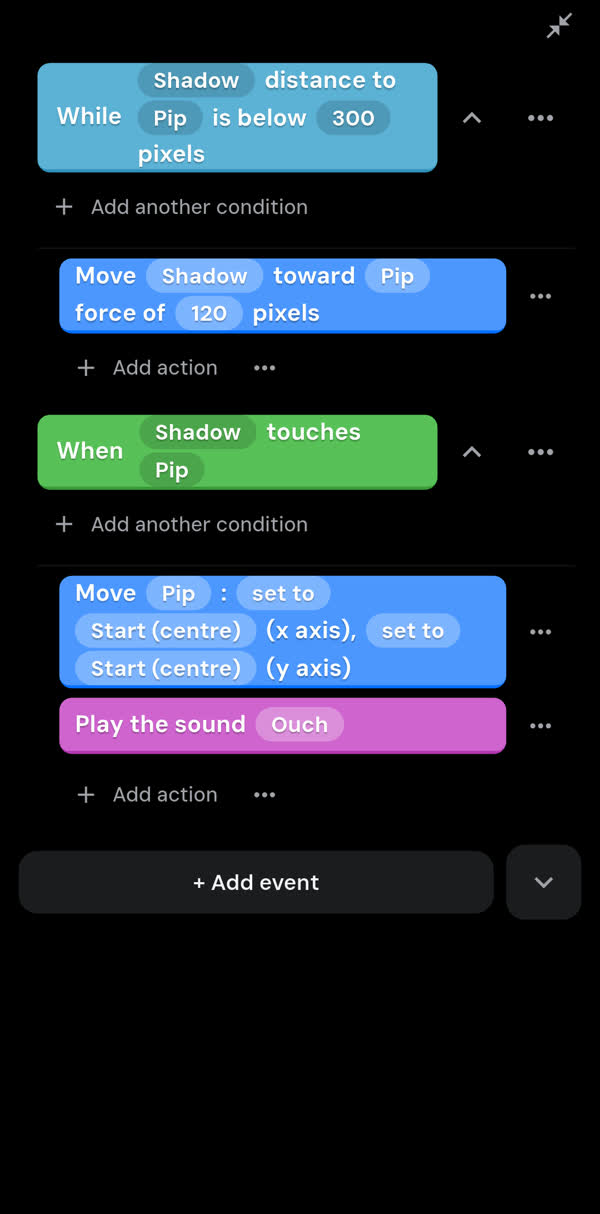
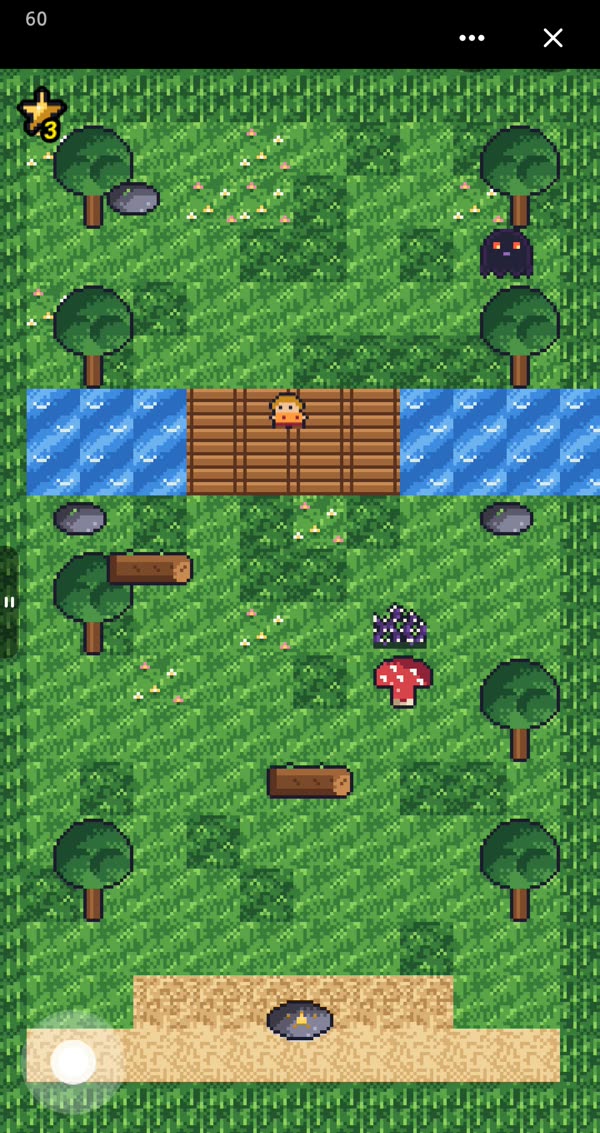
Tap Play. You will see the Shadow chase Pip when he comes close. If it catches him, he goes back to Start.
- Grow the Star TreePlace StarTree at the top of the forest. Tap EVENTS, + Add event, When it touches…. Pip is picked. Tap + Add action and pick Show. Tap its chip and change it to YouWin. Add Play sound… and pick Win.
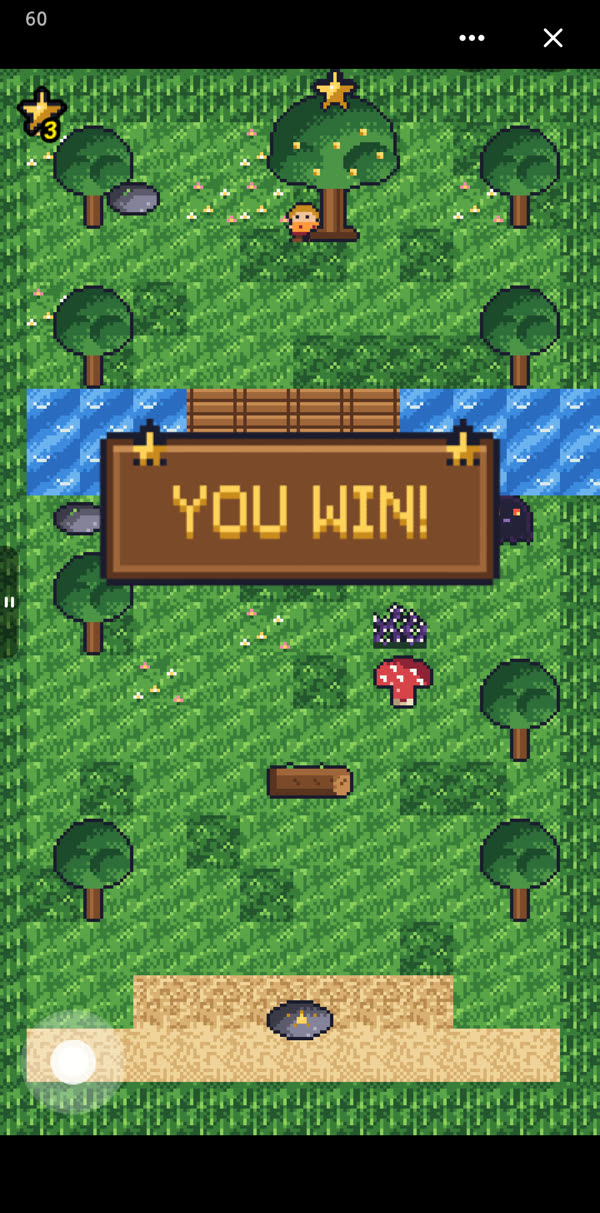
Tap Play and walk to the tree. You will see YOU WIN!
- Make it your forestNow it is your game. Move things around until it is fair but tricky. Keep the Shadow away from the Start stone and the bridge.
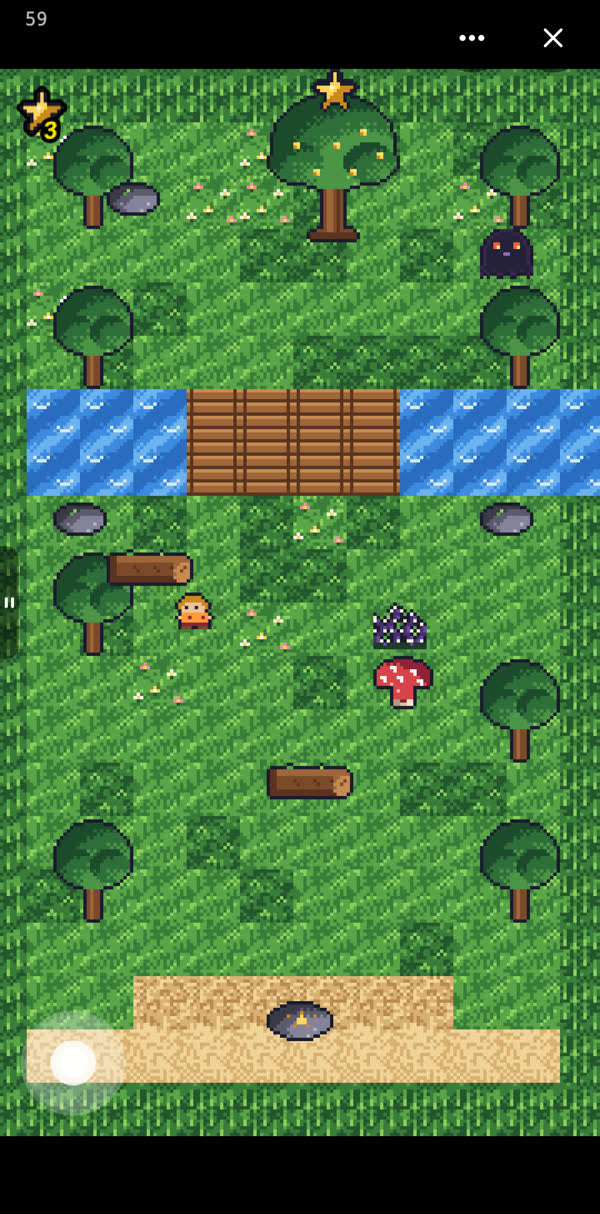
Tap Play and try it. If it feels too hard or too easy, move things and play again.
Ideas to try next
- Add more stars, then change the gate to at least 5.
- Add a second mushroom.
- Add two Shadows.
- Make the river bigger.
Frequently asked questions
Do I need to type anything to make Star Path?
No. You only tap. When a number is needed, you tap the number keypad, like 3 for the gate or 120 for the Shadow speed.
Why can't Pip cross the water?
The water tile is Solid. Solid means nobody walks through it. Use the bridge. Pip can cross where you painted the bridge tile.
Why doesn't the gate open?
Pip needs 3 stars first. Check that the gate event says at least and the number is 3. Check that you placed 3 stars and that Pip is the one who collects them.
Where is the Star Path template?
Open the Projects tab, tap Studio, then tap New game. Star Path is at the top of the list.
Can I change the pictures?
Yes. Select an object, tap Edit, then Edit art. You can draw your own or pick a picture from Pictures in this game.
Help Pip light the forest.
Build Star Path tonight on your phone. Max2D is free on Google Play.
 Free onGoogle Play